I checked this against your uploaded baseline and preserved everything outside the Anki-specific changes we had identified.
 A poll I did a few years ago here on Hacking Chinese revealed that listening ability was perceived as the hardest skill when learning Mandarin. That might come as a surprise to beginners, who think that learning characters is surely the most difficult aspect of the language, but listening is probably considered more difficult because native speakers talk fast, with varying accents and without a built-in repeat button.
Identifying spoken words and phrases is also a very common element in formal Chinese language education: the dreaded 听写/聽寫 (tīngxiě, “dictation” or literally “listen, write”).
Practising dictation on your own used to be difficult. Sure, if you had a friendly native speaker who could quiz you or had access to the audio to your textbook and didn’t mind spending hours creating audio flashcards, it could be done, but there are obvious problems with both approaches.
Today, though, it is both easy and free. In this article, I will show you how to practise for your听写/聽寫 with Anki! If you want to know more about Anki and spaced repetition in general, I suggest you read this article first.
Free and easy audio flashcards for Chinese dictation practice with Anki
Before we go any further, let’s have a look at what we want to achieve. Here’s a video I recorded on my phone after going through the process described in this article:
As you can see (and hear), these are simple audio flashcards that will make sure you nail every 听写/聽寫 coming your way. It’s also great if you want to review Chinese without staring at your phone or for basic listening practice in general.
To achieve this, you only need a computer and a phone. You can probably get away without using the computer, but I prefer to create cards and manage my decks on a big screen. You can also do without the phone if you want to study in a web browser. Please note that Anki is free on all platforms except iOS, where it currently costs $25 (one-time purchase).
This guide was done on a Macbook (most screenshots) and a OnePlus 6 (the video above). The process might look slightly different on your systems, but it should be mostly the same. The Anki version being used is 2.1.9.
Please note that this article is not meant to teach you the ins and outs of how Anki works. It is an extremely powerful piece of software that can do almost anything you want in terms of flashcards, but that’s beyond the scope of this article! If you want a more in-depth discussion about flashcards, see the discussion starting in this article:
[https://www.hackingchinese.com/how-to-best-use-flashcards-to-learn-chinese/](https://www.hackingchinese.com/how-to-best-use-flashcards-to-learn-chinese/)Setting up Anki correctly
- Download Anki to your computer
- Install the add-on Chinese Support V4
- Tools menu
- Add-ons
- Get Add-ons
- Enter the code 1240761427
- Download
- Restart Anki
- Go to Tools → Manage Note Types → Add and add “Chinese (Basic)”
Adding vocabulary to Anki
 As I said in the beginning, this is not meant to be a complete guide to Anki, so if you want more details about the inner workings of the app and how this actually works, please check the manual, which is very extensive.
Below, I will go through how to add notes, but Anki has a powerful import function and many shared decks that you can use as well. Please note that the auto-fill used here is a feature of the Chinese Support add-on, and is not a basic Anki feature.
I will cover the case of students who already use Anki later.
- Add (top menu)
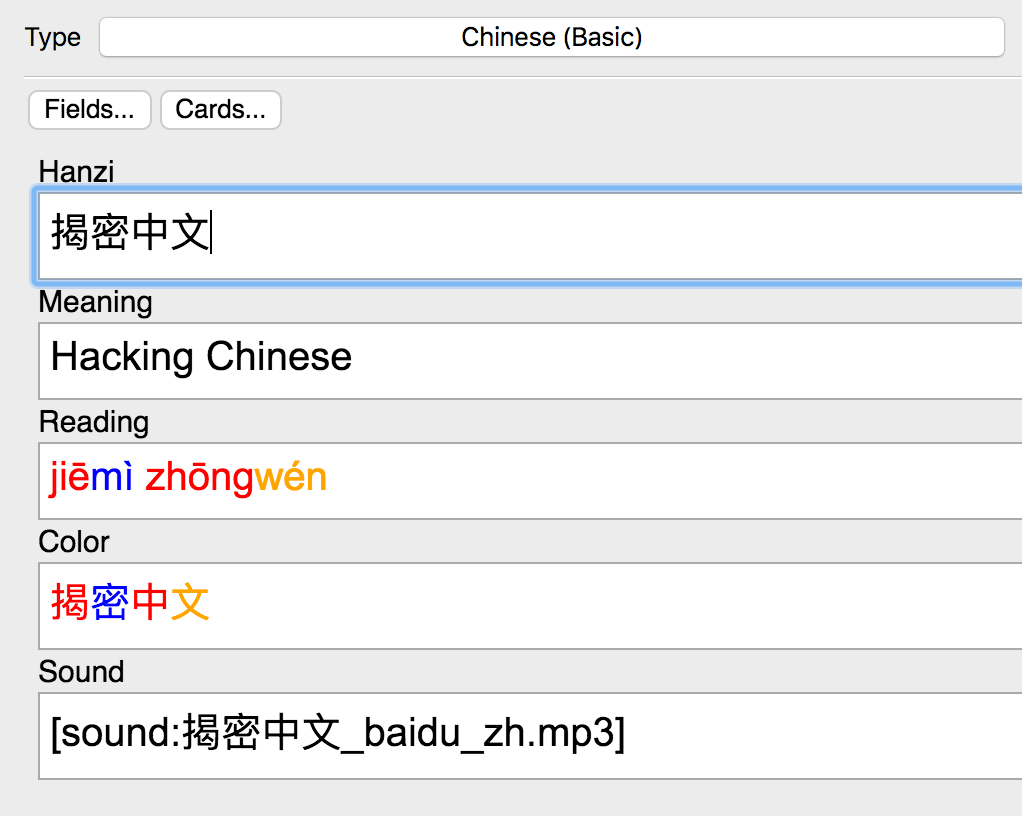
- Make sure Type in the top left is set to “Chinese (Basic)”
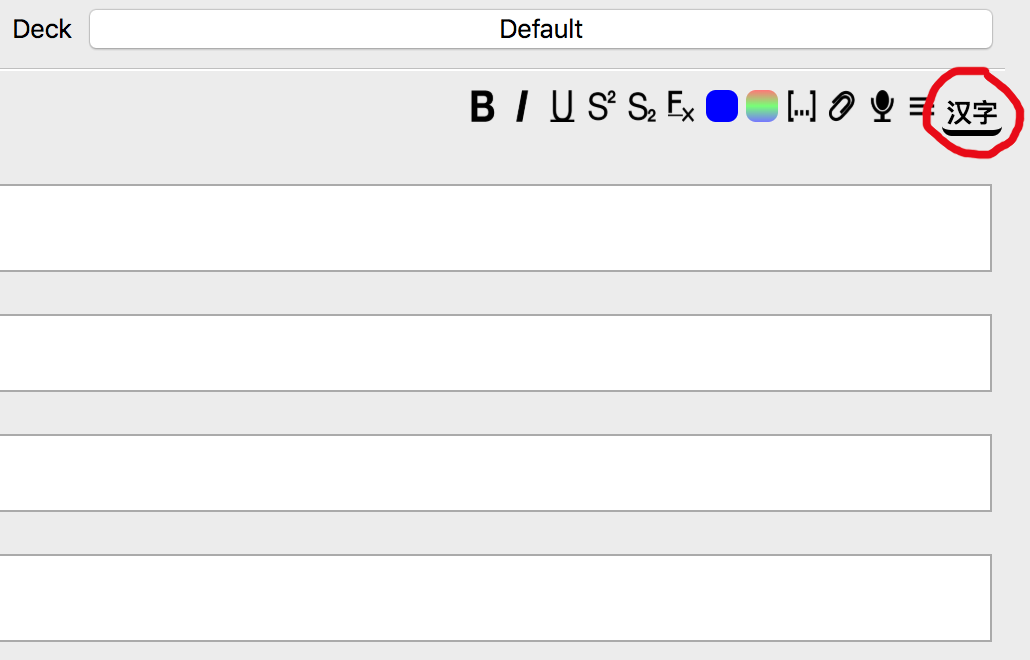
- Enable Chinese support by clicking the 汉字 button (on the right; see picture above)
- Type or paste characters
Example: 解密中文 - Press tab to go to the next field
- The remaining fields should now be filled automatically
- Check the result and fix any issues
- Make sure the field Sound is not empty
Example: [sound:解密中文_baidu_zh.mp3] - Add
Setting up the audio flashcards
Anki is based on Notes, which refers to the facts you entered when you created your note above (character, meaning, reading and so on; all of that makes up one single note). Anki then generated one or more flashcards for you, based on that note. We now need to change the existing card type into the type of flashcard we want. The default card isn’t set up for audio-only testing, so we need to change the front side to contain only the audio and keep everything else on the reverse side.
Here’s how to do it:
- Tools menu
- Manage Note Types
- Chinese (Basic)
- Cards (on the right)
This will take you to a screen that will probably confuse you at first. Don’t worry; we only need to do a couple of things here. We want only the spoken audio on the front of the flashcard, so remove the existing content from the Front Template and replace it with {{Sound}}.
Optionally, add {{Sound}} to the Back Template too. If you see there already, simply change it to {{Sound}}. Adding it to the front template means it will play before the answer is revealed, which is what we want. If you want it to play again as reinforcement when the answer is revealed, add it to the back template as well. This set-up was used in the video above.
There are many more things you can do in this dialogue, but as I’ve said a couple of times already, this isn’t meant to be a guide to Anki in general. There’s plenty out there on the web for the curious.
You probably also want to sync with AnkiWeb, both for backup purposes and to keep your devices synchronised. Click Sync to get started.
Congratulations! You now have audio flashcards you can study on your phone, your computer or even someone else’s computer. And good luck with your 听写/聽寫!
Below will follow some tips for students who use Anki.
Audio flashcards for students who already use Anki
If you already use Anki (and probably also the Chinese Support add-on), you can’t just go in and change the card generation, because it will mess up your existing setup. Instead, add a new card type. It can be somewhat tricky to understand exactly how Anki deals with notes, cards and so on, so I won’t go into details here as I’m no expert myself. Again, I refer to the manual!
However, I will say something about the add-on we’re using. Your existing note type needs to have a recognised field containing the Chinese and a recognised field for the audio, for example Hanzi and Sound. Check the plugin page for recognised field names. If your note type doesn’t have a recognised sound field, add one first.
If you’ve added the field, but your existing notes still have no audio in it, do:
- Chinese menu
- Bulk Fill
- Sound
This will go through the notes in the current deck and add audio where the sound field is empty. If you use the same note type in several decks and want audio cards for all of them, repeat this for the other relevant decks before continuing.
You can then add a new card type to your existing note type. Note that a card type belongs to the note type, not to a particular deck, so this change applies to all notes that use that note type:
- Tools menu
- Manage Note Types
- Select your existing note type
- Cards
- Options
- Add Card Type
Put {{Sound}} on the front of the new card type and whatever information you want to see on the back.
Hacking Chinese Pronunciation: Speaking with Confidence
If you’re struggling with Mandarin pronunciation in general and want a helping hand from someone who has been through all this, you can check out Hacking Chinese Pronunciation: Speaking with Confidence, where I teach you all the sounds, the methods you need to master them and the theory you need to master Mandarin pronunciation.
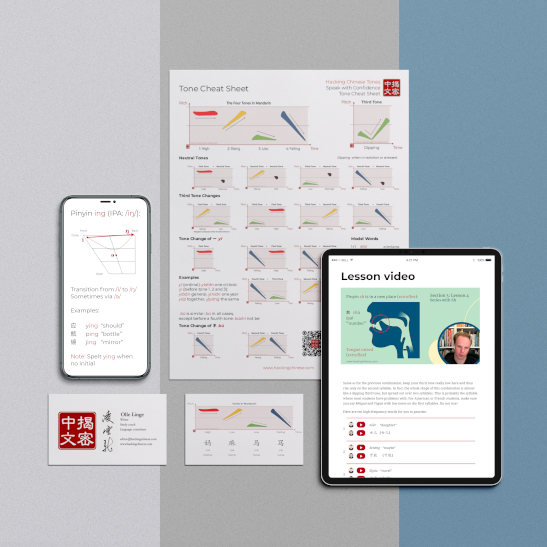
This course also comes with an Anki deck with audio already attached, so if you want to practise your tones, check it out!

23 comments
Thank you, Olle! This is super-helpful. I’ve poked at Anki before and even purchased the Spoonfed Chinese deck, which is great. But this article helped me understand how to create a deck to support my studying for an upcoming dictation test in my Chinese 101 class, which is perfect! The Anki manual can be pretty daunting and I had no idea that add-ons even existed before this. This was a real eye-opener.
Anki is great, but some things are very confusing, even if you know the basics already. How notes and cards work, how cards are generated and so on is all very complicated. I don’t think that’s because of bad design, it’s simply a consequence of having a program that can do almost anything. Other apps are easier, but you can’t do as much with them!
Thank you Olle. I feel very stupid now. I was filling all the fields myself and recorder sound using google translate 🙂
Well, at least you know how to do it now and don’t have to spend all that time from now on. 🙂
I like using audio flashcards on Anki, but I find I have much lower recall on audio cards that Hanzi cards, and it’s a lot harder to make use of memory hacks etc
Yes, that’s understandable (expected, even)! There are many fewer sounds in Mandarin than there are characters, and characters have meaningful components. However, memory hacks have much less use for listening since speed is such a consideration. I would never advise someone to try to brute force character learning, but I kind of recommend that for listening. For a tricky character, it’s okay to think for five, ten seconds and then come up with the right answer derived from a mnemonic, but that simply doesn’t cut it for listening!
Yeah that’s been my plan, no hacks, just hacking away at it!
Recently I’ve also been using full sentence audio flashcards to practice listening. Audio on the front, Hanzi on the back. If I need the English I hit E. Very generous settings for higher intervals, since I’m not remembering so much as practicing. I’ve found it’s quite effective.
I’ve used the info in the article to make quite a few Anki notes since first reading it in February 2019. Just recently, I finally figured out how to use the Chinese Support Redux plugin’s Amazon Polly source for text-to-speech. Though the Google Mandarin (PRC) source is good, I think the Amazon Polly voice is even better! It’s a bit of a pain to set up, but if you’re able to wade through it, I’d advise giving it a try. As Olle rightly notes, these TTS sources still aren’t good for mimicking. But they are getting better all the time!
Thanks for the update! Some day, I think I should do a comparison of the various TTS that are freely available and evaluate them from a language learning perspective.
That would be super, Olle! As someone still figuring out proper pronunciation, it’d be helpful to know the relative strengths of each option. Though not available as an automated source for Anki, it’d be interesting to hear your take on the Baidu Translate TTS and the ups and downs of crowdsourced pronunciations, as available through Forvo and (probably?) other sources.
Anki does have Baidu Translate for TTS, or at least my version of it has. I’d be rather careful with crowdsourced pronunciation unless diversity is the whole point. People speak very differently and unless those differences are the goal of your learning, then crowdsourcing is probably not a good idea.
I prefer the Polly voice too…. main beef with the Google voice is it always pronounces shi as she. Polly does it right.
I’m building up more and more reasons to do a thorough comparison of TTS for language learners. 🙂 The only thing that worries me is that it will be out of date quickly.
Note that the Redux Add-On is broken at the moment.
There’s a work-around: https://github.com/luoliyan/chinese-support-redux/issues/169
Sadly, it looks like the owners of the add-on are being quite slow to accept contributions from the community, but hopefully it doesn’t kill the add-on.
If you do end up using the work-around, but you still don’t hear any google audio for some of your notes (created before applying the work-around), you might need to manually delete the empty audio files associated with these notes
Thanks for sharing! I haven’t looked into this at all, but does it only affect Google’s TTS? Last time I checked I thought the Baidu one worked better, but maybe all the TTS engines are affected?
This is a good article and I’m a big fan of audio flashcards, but it might be worth updating it to take into account changes in the relevant software. AwesomeTTS has gone through a lot of changes and now supports more voices, with some additional complications such as requiring an API key, Anki now supports TTS out of the box, at least for system voices, but most notable is recent introduction of Azure’s neural voices, which are significantly more natural than any others supported by AwesomeTTS or Anki. They are close to the point of being able to generate whole sentences naturally, and frankly anyone using TTS to generate audio for their cards should look at switching over to them.
Thank you for your comment! Yes, this definitely needs an update. Development in TTS is pretty fast, and even if everything doesn’t trickle down to free flashcard apps like Anki, a lot has happened since this was published. I’ll see if I can write an update soon. I still don’t think synthesised audio is good enough for pronunciation practice, but it does work well for listening practice in general and is certainly better than nothing.
That’s a great article. I do have one problem though. This type of Anki set up only helps us to improve our recognition, but what about recall? Is there a way to reverse the cards using Chinese Support Redux? What is the best way, the best template to learn Chinese characters/words?
Yes, the whole purpose of this type of setup is to practise recognition (that’s implied by dictation practice, after all). Personally, I have never relied heavily on flashcards for speaking. I’ve found it much more valuable to focus on input. When I do want to focus on speaking, which is only for specific words or phrases, I think cloze deletion usually works best. I doubt there is an ideal/best template to use, it all depends. If you want to reverse the order of the cards, that can be done very easily, provided you know the basics of Anki, just create another card template that changes what’s put on the front/back of the flashcards! You can find more info here: https://apps.ankiweb.net/docs/manual20.html#cards-and-templates
This article is REALLY REALLY REALLY AMAZING
I wasted so many hours with making flash cards, having a bad design, then being unmotivated and not reviewing, and finally giving up on them
With this setup I finally see the light and made flashcards work for me
Thanks so much Olle, going to sign up for the pronunciation course next when it’s available again 😄
Hi Gregor! So happy to hear it worked out for you! This article is actually very high on my list of articles to rewrite, mostly because the TTS is so much better these days. If you did this recently in Anki, did you notice anything you think I should keep in mind when rewriting the article? Any other experiences or thoughts you think would be worth bringing up? Thanks!
Hi Olle,
thanks for the insights.
What is the status of your plans for relaunch of your article?
Frank
I’ve now bumped the priority a bit! I can’t promise when I will have time to do it, but it could be sooner rather than later!